Platform
-
Interactive DashboardsCreate interactive BI dashboards with dynamic visuals.
-
End-User BI ReportsCreate and deploy enterprise BI reports for use in any vertical.
-
Spreadsheet AnalyticsNewLast-Mile Analytics Tool.
-
Narrative Data StoriesThe Next Evolution of Data Storytelling
-
Automated Business DocumentsNewDocument Generation for Smarter Workflows
-
Visual Data Pipeline BuilderDesign Complex Data Flows, Simply.
-
Wyn ArchitectureA lightweight server offers flexible deployment.
Use Cases
Add On
Featured from Blog
-
 Wyn Enterprise 7.1 is ReleasedThis release emphasizes Wyn document embedding and enhanced analytical express...
 -
 Choosing an Embedded BI Solution for SaaS ProvidersAdding BI features to your applications will improve your products, better serve your customers, and more. But where to start? In this guide, we discuss the many options.
Resource Library
-
Visual GalleryInteractive sample dashboards and reports.
-
BlogExplore Wyn, BI trends, and more.
-
WebinarsDiscover live and on-demand webinars.
-
Customer SuccessVisualize operational efficiency and streamline manufacturing processes.
-
Knowledge BaseGet quick answers with articles and guides.
-
VideosVideo tutorials, trends and best practices.
-
WhitepapersDetailed reports on the latest trends in BI.
New Guide
-
 Choosing an Embedded BI Solution for SaaS ProvidersAdding BI features to your applications will impr...
 -

Steps to integrate Ollama with Wyn as an LLM
Background:
This guide explains how to install Ollama on Windows, download and run a local LLM model, and configure Wyn to connect to Ollama for:
- LLM (chat/generation)
- Text Embedding (text-to-vector conversion scenarios)
Prerequisites
- Windows machine with permission to install applications
- Wyn Admin access
- Ollama installed and running locally
- Internet connection to download models (if not already downloaded)
- Download and install Ollama (Windows)
- Download Ollama from the official website: Download Ollama on Windows
- Download as Windows installer:
- Download via CMD/PowerShell:
irmhttps://ollama.com/install.ps1| iex
- Download a local LLM model in Ollama
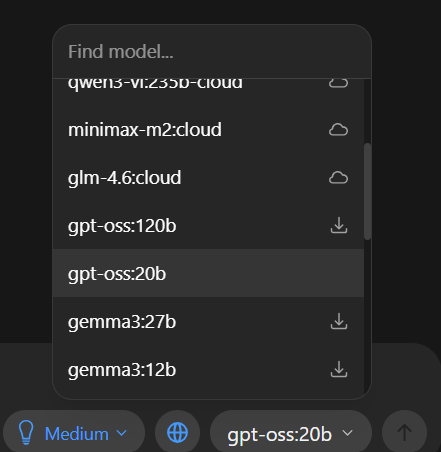
- Open the installed Ollama application.
- Choose any available LLM (Cloud-based / local models).
- In this example, we use the local model: gpt-oss:20b
- Let the model download in the background.
- Note: Downloading time is affected by model size, machine capabilities, and network speed.
- Run the installed LLM (enable it) and verify models
- Open CMD as Administrator.
- Run the installed LLM (example):
ollama run gpt-oss:20b
- Verify installed models:
ollama list

- Verify Ollama is reachable from a web browser
- Open a browser and verify using these links:
- Create an Ollama API key (Optional)
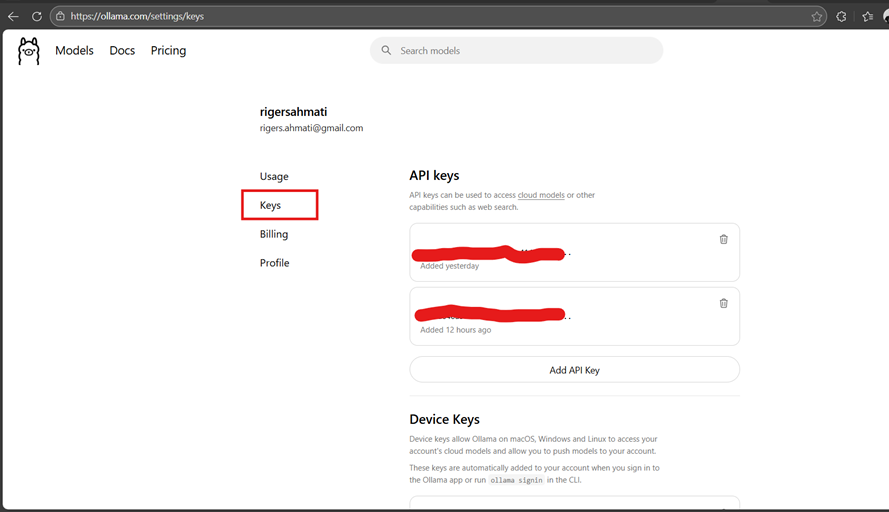
- On the Ollama website, go to: Ollama keys · Settings
- Create an API key.
- This key can be used later in Wyn’s LLM setup page.
- Note: API key is not mandatory in localhost environments.
- Configure Wyn LLM Settings (connect Wyn to Ollama)
- In Wyn, go to:
- Admin Portal → Configuration → AI settings → LLM Settings
- Fill in the settings:
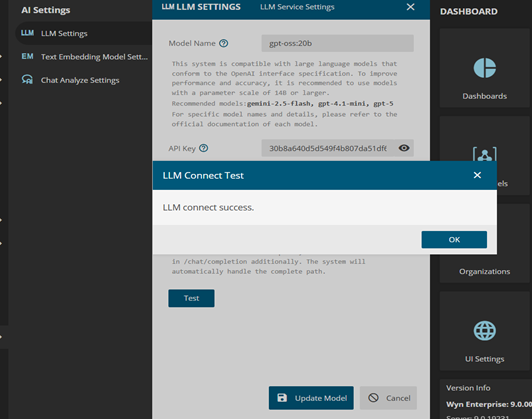
- Model name:
- Your own model name (example: gpt-oss:20b)
- API Key:
- Localhost: not mandatory
- Cloud/non-localhost: required (use the key generated on the Ollama website)
- Endpoint:
- http://localhost:11434/v1
- Important: add “/v1” after the base URL to make it work
- Model name:
- Click Test:
- You should see: LLM connect success
- Click Save Model
- Update Ollama context size (recommended)
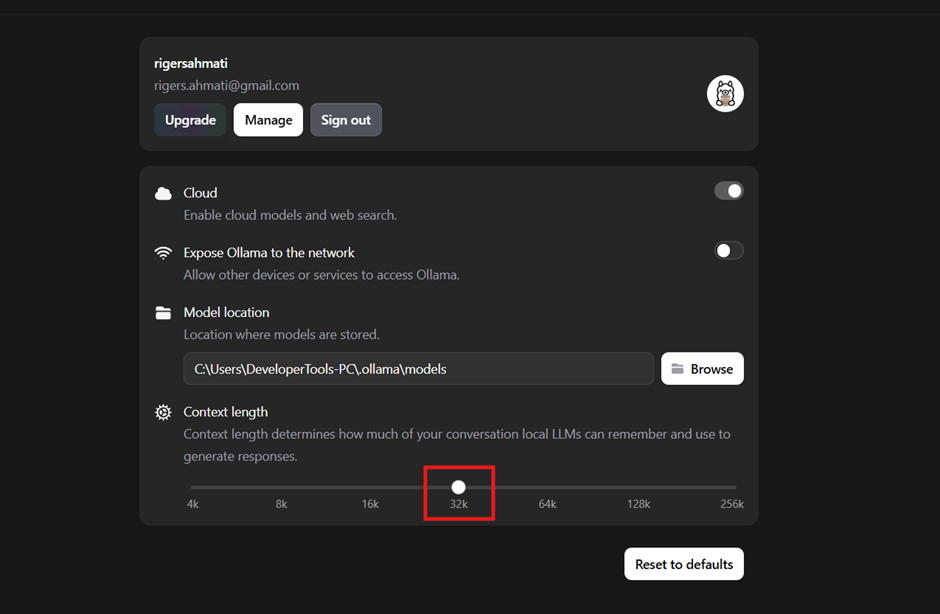
- In Ollama application settings:
- Change the context size to 32k
- Reason:
- So the model can get a larger/complete message context.
- Text Embedding Model Setting (required)
- Text Embedding requires another model eligible for text data conversion.
- In this example, we use:
- qwen3-embedding:8b
- Pull/download the embedding model via CMD
- From CMD run:
ollama pull qwen3-embedding:8b
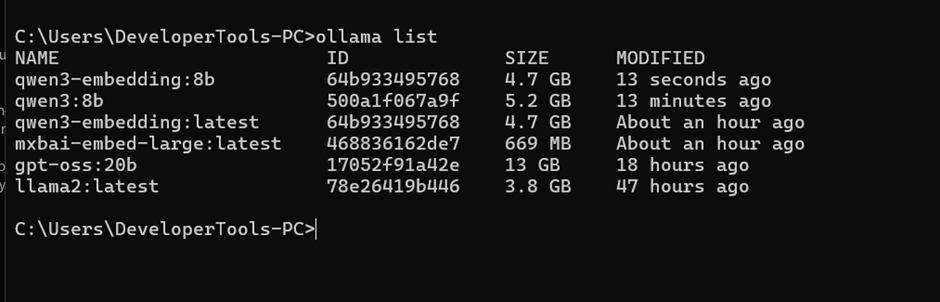
- Confirm the embedding model is installed
- Run:
ollama list
- Confirm qwen3-embedding:8b has been added.
- Configure Wyn Text Embedding Model Settings
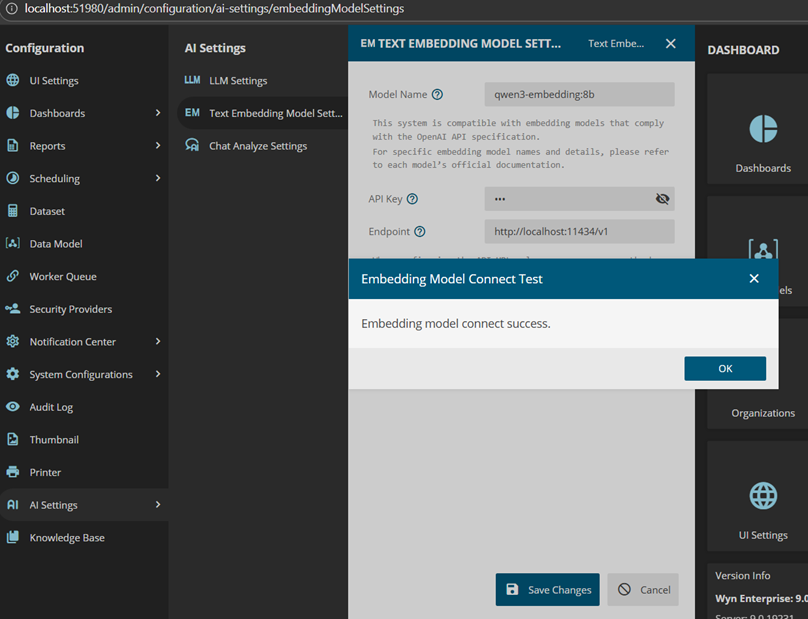
- In Wyn, go to:
- Admin Portal → Configuration → AI settings → Text Embedding Model Settings
- Fill in:
- Model name:
- Your choice (example: qwen3-embedding:8b)
- API Key:
- Any key as long as you are on localhost
- Endpoint:
- Model name:
- Test and save the embedding model connection
- Click Test:
- You should receive a successful connection message
- Save changes.
Troubleshooting (common checks)
- Wyn “Test” fails (LLM or Embedding)
- Confirm Ollama is running:
- Confirm Wyn endpoint includes /v1:
- Confirm the model name matches exactly what Ollama shows:
- ollama list
- Model not found
- Confirm installed models:
- ollama list
- If missing, pull the model:
- ollama pull <model-name>
- Confirm installed models:
Notes
- Large models may require significant RAM/VRAM depending on model size.
- For non-localhost deployments, use proper network security controls and API keys where applicable.

Enea Gega
Enea is a Technical Product Enablement Specialist for the Wyn Enterprise Platform. He acts as a vital bridge between customers, product teams, and engineering to ensure that every new feature delivers genuine value and drives user adoption.
Enea specializes in translating complex customer needs into actionable insights for product roadmaps and technical documentation. By partnering cross-functionally, he ensures seamless delivery readiness and alignment across all releases.
×